The minute that email landed in my inbox, I was right on it getting a new GPT ad account setup. For months I’ve watched as OpenAI has let US advertisers test out GPT ads, and made us UK advertisers wait on a list for an unspecified amount of time.
Today that email landed, and the OpenAI Ads Manager is now live for UK advertisers in beta.
Through all of that time, what I’ve noticed is that a lot of people (particularly on LinkedIn) were claiming to be an expert on GPT ads already, and yet I’ve not seen one screenshot or interface of the actual GPT Ad manager posted.
I’ve literally just got access, and set up a new campaign for my AI automation agency flowio. I couldn’t pass up the chance of trying out a new ad format – I remember when Snap Ads had just been released, that ad manager interface was a similarly (bright yellow) buggy mess with limited options, or when TikTok ads were first released.
If you’re contemplating setting up GTP ads, and have managed to get access to the OpenAI Ads manager in the UK – I’ve pulled a basic guide together below to help you get started.
Pre-Requisites:
- Business – You’ll need a verified UK business with company number/registered address to verify
- Credit Card – To set up the billing
- Access to a Google Tag Manager or website code to set up conversion events
Getting setup on OpenAI Ads Manager
I got started with an invitation like the one below, but if you haven’t been on the waiting list, try to start via ads.openai.com. I cannot guarantee that ChatGPT ads is currently open to all advertisers right now, I had originally signed up to the waitlist over 3 months prior.
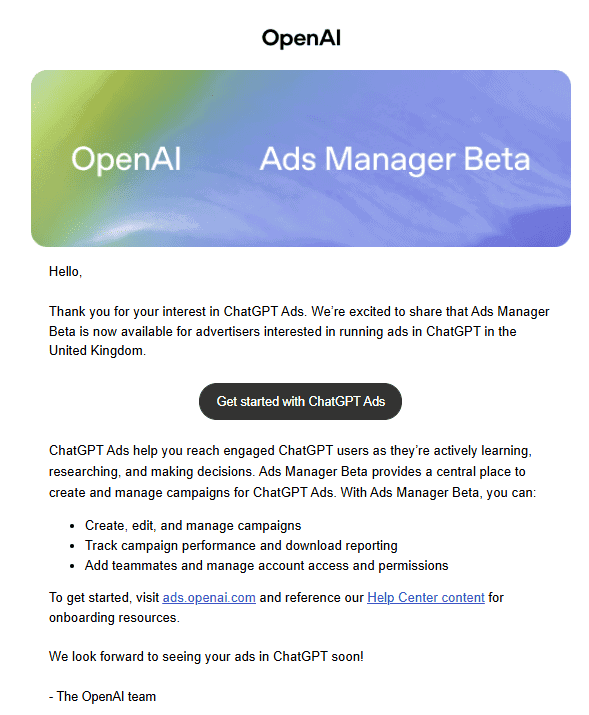
Once you’ve set up a basic account login and into the ChatGPT Ads Manager, then it is rather intuitive to set up a new campaign.
Creating a new campaign
Click the ‘Create campaign’ button.
There are only 3 levels to ChatGPT ads, which you’ll probably be familiar with working in PPC
Campaign – The top level where campaign type, objective, geo-location and budget is set.
Adgroup – The theme level where maximum CPC and context hints are set.
Ads – The ad level where you create your ads.
You go through these sequentially like you would with Google Ads or Meta Ads.
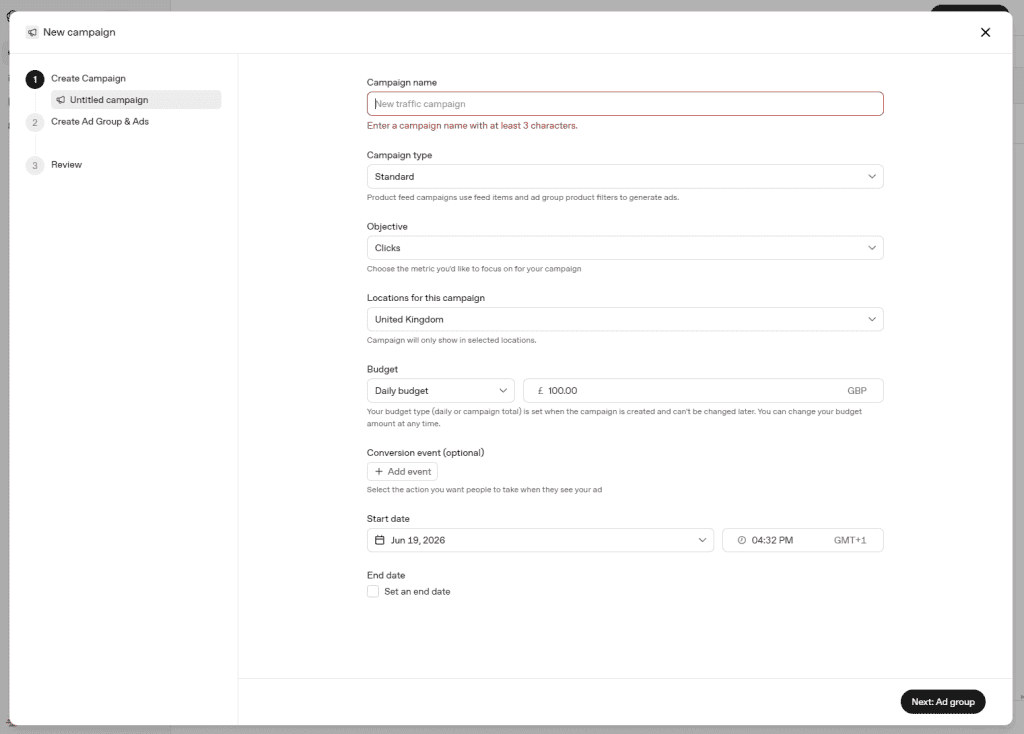
A little note about some of the options on the campaign setup page:
| Criteria | Options | Note |
|---|---|---|
| Campaign Type | – Standard – Product Feed | There are only two options currently – for a text ad based campaign choose Standard. If you want to promote products with a feed use the feed option. |
| Objective | – Reach – Clicks | It is unclear at this point how ChatGPT actually serves reach based campaigns, all of these options should feel familiar to Google Ads and affect the charging model (CPM / CPC). Conversions is currently greyed out and labelled as ‘coming soon’ |
| Locations for this campaign | United Kingdom Australia Canada Japan New Zealand South Korea | The current geographic targeting is limited to the country options listed only. No cities or towns can currently be selected or searched for – you can however manually search for country regions of a location e.g. it is possible to target ‘Scotland’, or ‘Wales’ individually. |
| Budget | Daily Budget Campaign Total Budget | Two options for your campaign budget here which cannot be changed after creation – e.g. you can’t go from a daily budget to a campaign total after creation. From my own tests – daily budget is exact unlike Google Ads which may spend more than what you set. |
| Conversion Event | + Add Event | When setting up a new campaign for the first time you will not see this option – a conversion pixel and conversion event must be setup first and then added to a campaign. For any additional campaigns you will see the option to link a conversion event (e.g. form submit) to a new campaign. |
| Start Date / End Date | Date / time | Self explanatory, set your start and end date (if applicable) here. |
Setting up an adgroup
This section is relatively simple, it’s where you set your maximum CPC bids, ad urls and context hints (more about that down below). Remember, that adgroups help you separate themes of a theme – or for product feed campaigns product categories or distinct offers.
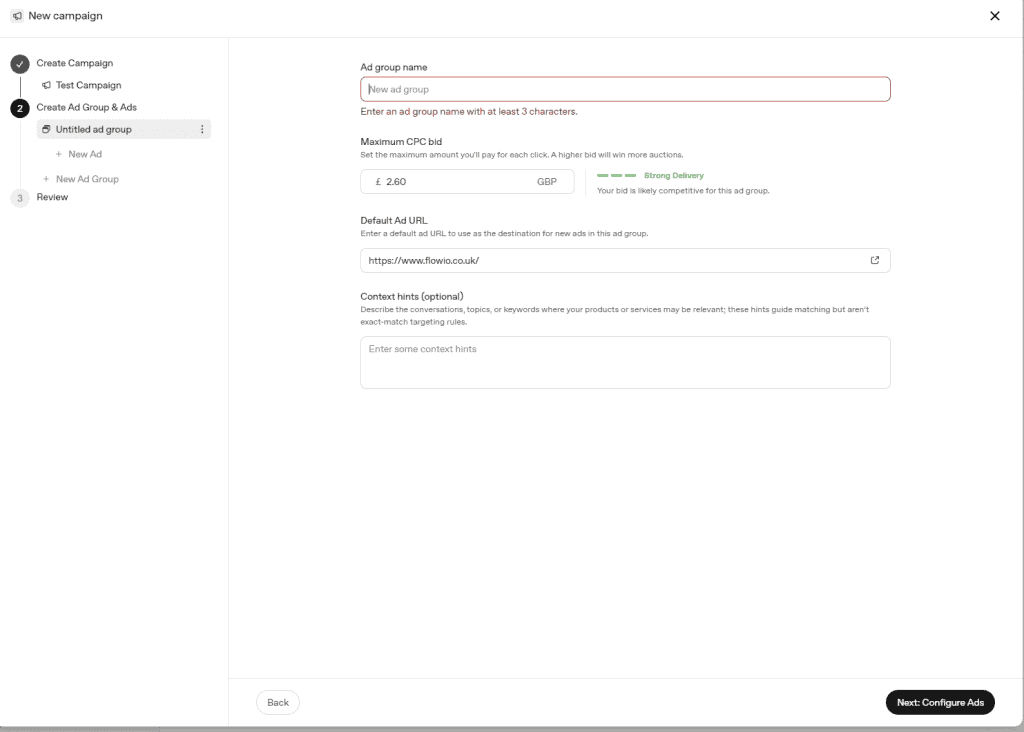
Maximum CPC Bid: My biggest gripe about the current ChatGPT ads setup is the lack of transparency over bidding. In this section for setting up an adgroup in ChatGPT ads, you set a single max CPC for the adgroup. OpenAI Ads Manager will then simply inform you if you may have ‘Strong Delivery’, or ‘Weak Delivery’. It’s worth adjusting this figure, and not commencing with their recommended starting point. I’ve put campaigns live with £0.15 CPC that have still spent the entire budget so far.
Default Ad URL: This will be the URL that new ads get as a starting point, you can still edit these later in the ads section.
Context Hints: Even though this is an optional field – it is pretty much the only targeting hint you can give ChatGPT ads to help serve to the right context. Whether OpenAI is automatically and algorithmically serving ads into meaningful conversations is a different story – it is worth filling this out with core products/services and keyword based themes that you ideally want to be served into. It’s uncertain at this point how ChatGPT ads are actually using this to serve your ads.
Setting up the ad
The fun part. Ad creation, well – it’s not that fun, it’s actually pretty basic. You have an ad url, a 50 character headline, and a 100 character description. (Remind anybody about Twitter ads?).
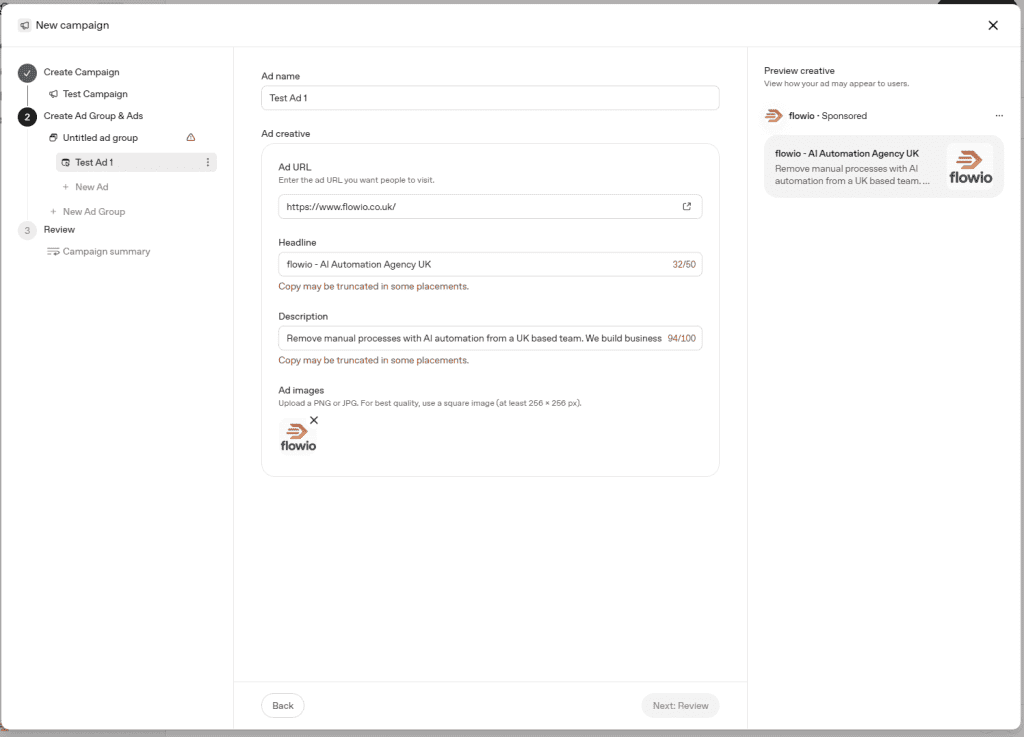
The nice thing about the ad creation is that you get to add an image, typically a logo that GPT ads will decide for you based on your account settings, but this can be edited.
The main thing to note is that headlines are only 50 characters long, and can get truncated at that length, whilst descriptions are 100 characters long which means you can’t just superimpose your Google Ad copy into ChatGPT ads.
Once your ad is setup, the next thing to do is ensure that your billing information is all setup (adding a credit card and business verification) which the ads manager will guide you through, and then setting up a conversion pixel:
Setting the conversion events up
Much like any other ad platform, you need a platform specific pixel to fire across all pages of your site, and then set up a conversion event to trigger whenever a form is submitted, content is viewed or checkout complete for instance.
The process is relatively simple if you have Google Tag Manager. Go through Tools > Conversions and create a new Data Source.
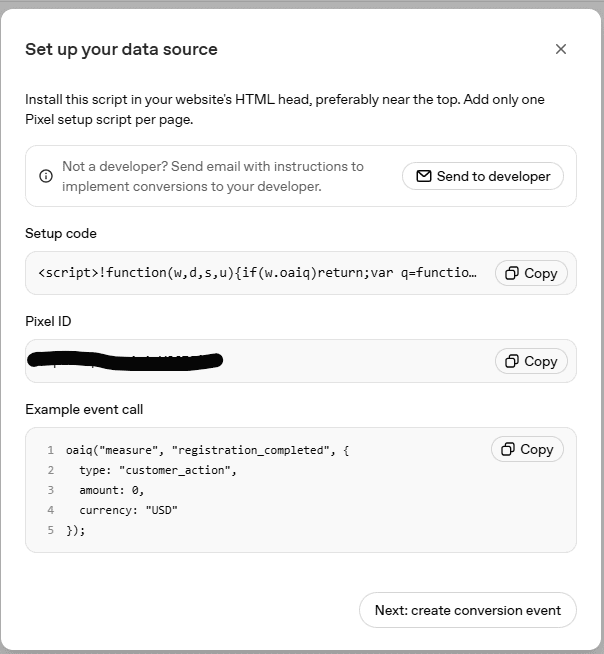
Use the setup code (the script tag) and then go to Google Tag Manager, create a ‘Custom HTML’ tag with the code pasted into it, and finally add a trigger for all pages on consent initialisation. This may be different within your own consent settings and setup, so I’ll leave that part for another time.
Conversion events
Once you’ve confirmed your main pixel is working – the next step is to create custom conversion events based on what you want to measure. GPT ads will provide you with a selection of base events to choose from e.g. Lead Created / Content Viewed etc.
In this screen you then connect it to your Data source (your pixel that you setup in the step prior).
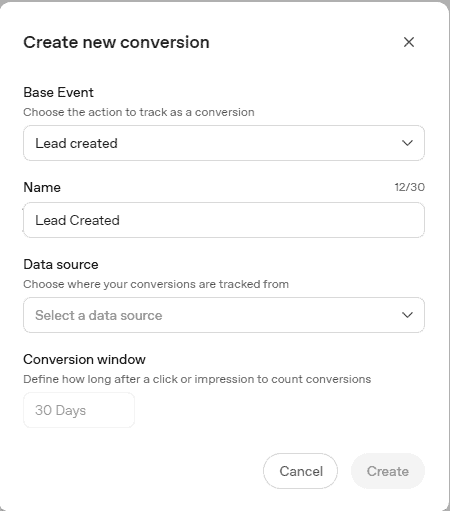
Once the event is setup, you are provided another code – which again if you are using Google Tag Manager, create a new custom HTML tag and paste in the code, but this time only trigger on the event action – e.g. form_submit, or whatever you are trying to measure.
The Good, Bad and the Ugly
It’s only been a day that I’ve had access to GPT ads platform. I’m excited, as always about new ad formats, but the truth will be how much impact GPT ads will have. Whether black-box ads in a conversational window will actually deliver real ROI and results, rather than being subject to click fraud, high CPCs or poor quality response.
From what I’ve seen already, here’s my unfiltered opinion on GPT Ads:
The Good:
- Setting up a campaign is painless, it’s a simple process with very little options. From campaign creation to go live, it’s done within a few minutes.
- The ability to run product feed ads from the get-go is a win for retailers. I’m currently in the process of setting up a product feed campaign, so cannot comment on this side of it right now.
- The interface is clean, intuitive, and simple. Nothing is cluttering up the UI.
- The API is accessible to all – the GPT ads management API gives you some powerful ways to manage ads, create campaigns and pull insights.
- The conversion API is available from the start meaning that you can send your own conversion events back (we use this at the end of submission workflows) based entirely on what you consider a conversion. (e.g. a lead is validated and qualified in HubSpot, and not a fake contact polluting the conversion).
- The change history screen is actually rather nice and clear, I’m comparing this against how Google Ads handles change history though.
The Bad
- Numerous errors when trying to upload product feeds – This is more than likely due to how new the platform is.
- Targeting – there is little in the way of information as to how GPT ads actually serves ads. We have context hints, but it is still unclear as to how or if GPT actually uses this to target your ads.
- Locations – As of June 2026, the targeting of ads is still locked down to the locations we laid out, you cannot target individual towns, cities or geo radius like other platforms right now.
- Metric analytics – There is little in the way of analytics or reporting. As of just now we’ve spent near enough £100 on GPT ads, yet the interface still shows 0 metrics for everything. This is a red flag for real-time transparency on ads. Most new ad platforms (Snap Ads / TikTok) have had these teething issues, so hopefully this is just temporary.
The Ugly
- It’s obvious the whole ad platform has been vibe coded – whilst it is a lovely interface, the errors that sometimes get thrown up uncover it. For a brand new MVP platform it does well however.
- Bidding – Currently little, to no control and transparency over bidding. What are we bidding on? The only time you get to set this is at adgroup level, and GPT only tells you if you’ll get strong serving or weak serving. For serious advertisers bid transparency is key. Breakdowns, fraudulent clicks, bid ranges, and ultimately bidding strategies.
Bonus Tip
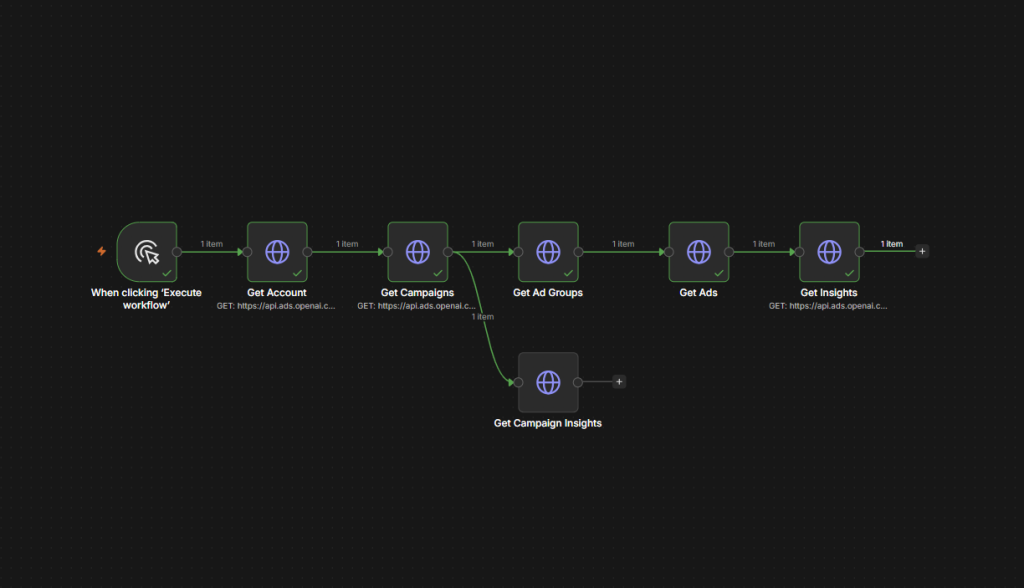
I wasted no time in utilising the Ads management API in n8n. This little workflow grabs campaign ids, adgroup ids, ad ids and then uses the /insights endpoint to pull back metrics. If you’re running GPT ads and want something similar talk to me over at flowio.
In Summary
I’m always excited to see a new ad format and platform land, the more diversity of channels we have is a good thing. The way users search and find businesses has dramatically changed over the last 6 months, I’ve seen more prospects find flowio through CoPilot, GPT and Claude LLMs over simply searching through Google. The question is still out on whether GPT ads will deliver real results however, you have to bear in mind that ads are not shown to paying GPT users (which account for the heaviest users) – but like other ad platforms, I think there will be an emergent use-case for GPT ads. Whether that is for retailers being able to surface products at exactly the right time, or B2B being able to recommend their services during research we will have to wait and see.