Google have just launched their official Google Ads API MCP server as of October 8th 2025. For PPC professionals, developers and agencies this is a huge level up in the ability to interface Google Ads data with LLMs like Gemini locally, and ensure data remains secure – and not being pushed over random third-party integrations.
Put simply an MCP server is a standard that can communicate with the current Google Ads API through an LLM such as Google Gemini. This lets users ask questions directly within an LLM about their own Google Ads, such as “How have my campaigns performed last week?” or “How many clicks did I get yesterday” etc.
Think of the Google Ads MCP as a ‘bridge’ between the Google Ads API and an LLM (or other agent tool). With that bridge, the LLM (or agent) can query your Google Ads data via the API in a structured way (campaign metrics, performance, data filters etc.) allowing natural language insights, campaign diagnostics and programming capability.
Importantly, the initial release of the Google Ads MCP is read-only, meaning that the agent or LLM communicating with your ad accounts via the MCP can only read data and performance; not create changes or adjust bids. This may sounds limiting, as the API has the ability to create campaigns, ad copy, bid changes etc., however this is a first step with security front of mind.
Security can be a key concern when it comes to MCP, and the ability to ‘add Google Ads to Claude’ has been around for a while with unofficial MCPs – this however, presents a huge security issue for many agencies & PPC managers that have connected all of their client accounts directly into an LLM such as Claude.
Currently, the Google Ads MCP can be setup in a CLI (Command Line Interface) LLM such as Gemini CLI, giving you the ability to query your ad accounts directly from your local machine. This method also ensures that Google Ads accounts are connected in a secure OAuth2 client credential method, and with proper scopes. This is not something that currently exists on existing MCPs which typically ask you to either use a service account access (e.g. another google ads user connected to your MCC or account, or ask you to login directly to your Google Ads accounts) to enable read access.
I’ll take you through how to setup the Gemini CLI, and Google Ads MCP later in the article.
Why does the Google Ads MCP matter for PPC?
From a PPC management perspective, whether you are in-house or managing multiple clients within an agency, here’s where I see the Google Ads MCP having an impact:
1. Natural language diagnostics and analysis
If you’ve been in a Google Ads account recently you’ll have noticed the Google Ads agent on the right side of the interface allowing you to chat naturally and solve problems or get data insights. This is effectively how you can use the MCP, but within an agent that you build yourself, or directly from the command line in a local LLM like Gemini CLI. Because the MCP interface abstracts the complexity of the API, you are able to ask an AI assistant questions such as “Which campaigns lost impression share over the weekend?” or “What are my top performing search terms for the previous 90 days?“, all in natural phrasing. The agent converts that in GAQL (Google Ads Query Language) under the hood, so you don’t need to understand how to query the API directly.
2. Faster prototyping of analytics tools
If you want to build internal dashboards or AI assistants that reason over Ads performance, MCP can reduce the overhead of wiring up the API each time. Having the ability for an AI agent to query the API through natural language presents a huge array of opportunities when it comes to reporting. Think of all those questions you get asked in board meetings, in client/agency stand ups, and the time it takes to dig into your reporting or Google Ads account. All of that can be accessed instantly through natural language that even a C-Suite can get the hang of.
3. Unified interface across multiple accounts or clients
For agencies managing multiple client accounts under an MCC, a single MCP server instance (or cluster) could provide a common access point for all accounts. That would simplify any AI layers or agents you plan to build as an agency, as the agent simply needs to talk to the MCP, not every single Ads API credential.
4. Lower friction or cultural change for AI/agent adoption
If your team or partners use LLM-based tools or agents in the future, having MCP support built into your ads stack means those tools can access your campaign data more efficiently, and cleanly, rather than relying on custom connectors.
5. Auditability and safety
Because the first version of the MCP is read-only, this reduces risk. It’s actually still relatively complex to get provided a full production Google Ads API developer token (which is a pre-requisite of being able to utilise the MCP on your live accounts), however there are significant risks involved when letting third-party tools or cloud based LLMs have access to all of your Google Ads accounts in one go.
As mentioned, I have seen numerous instances of users connecting up unofficial Google Ads MCP servers directly into Claude (LLM) to be able to query, report and gather insights. While this may seem okay, the methods of connection are not. Typically using service accounts (another user connected to your MCC or ad account) or using browser based auth (prompted to login via Google on the browser) these tools can now see directly into your ad accounts plus you are allowing a third party LLM to access your data. If you manage your own ad account, or business account and want to do this – it may be fine, but if you are an agency and connect up all your ad accounts, have you asked your clients permission to share data across servers?
The official Google Ads MCP solves this. The MCP server can be run locally (on your own machine), and while the actual API/MCP is not local to your own machine, you connect through GCloud OAuth client credentials – this means that you have advanced capabilities to provide access to users, ad accounts and scopes within your organisation.
This is also why it is important that the current MCP is read-only. Picture this: You manage a PPC agency, you use an LLM to create new campaigns and adjust bids connected to Google Ads. A disgruntled junior employee simply types in to the company (local) LLM “Raise all bids on all accounts by 500%”. Where is the traceability? The guardrails? If everyone has access to everything, things can quickly become insecure.
I am hoping, that in the coming versions of the MCP, write-permissions will be added (and hopefully specific scopes) to be able to perform everything that the API can currently do.
What Tools Does the Google Ads MCP have?
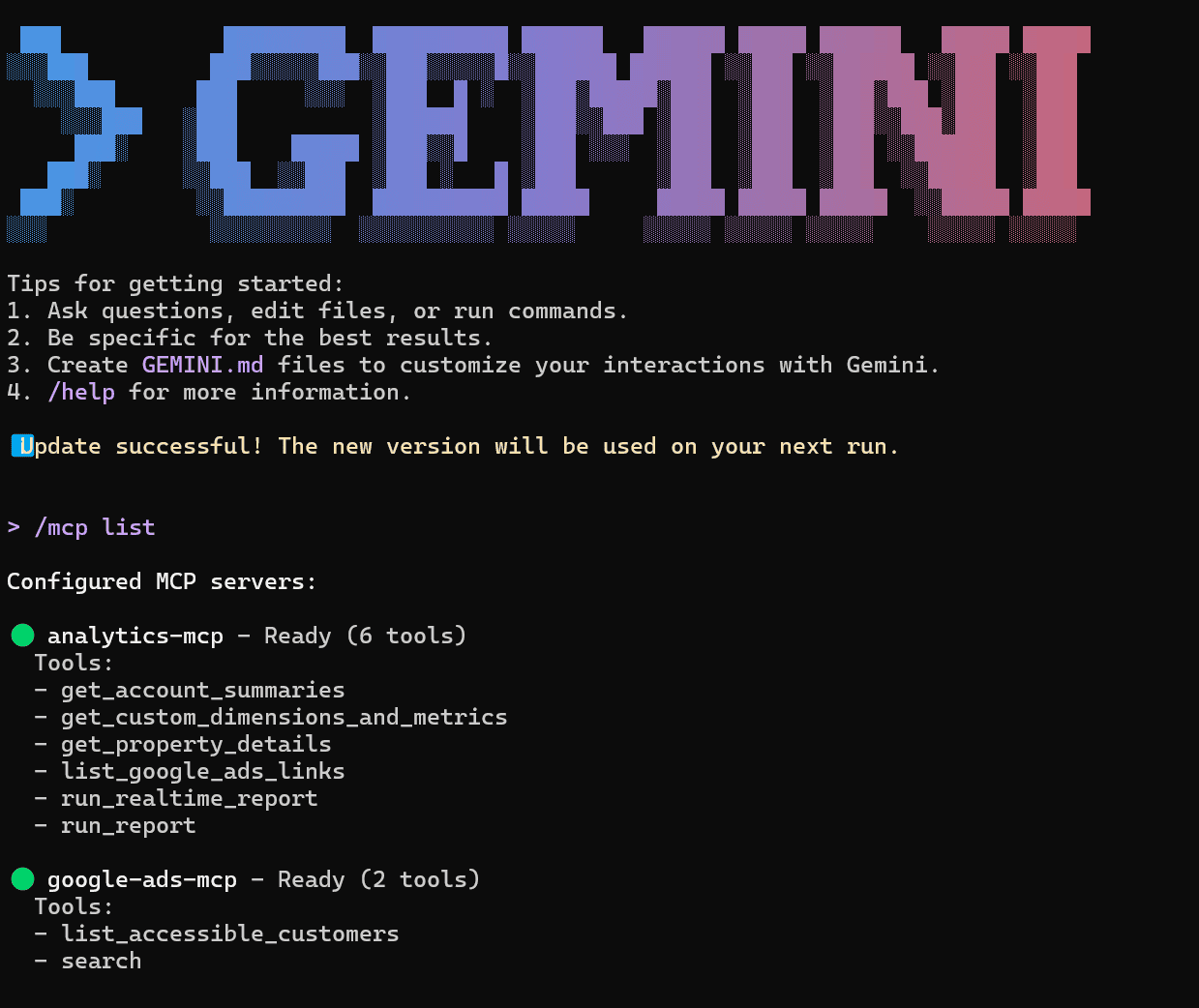
An MCP has available tools that can be called, or that you can talk to directly. As an example, a simple ‘Calendar MCP‘ that I’d build out may have individual tools such as ‘Get Availability‘, ‘Search Calendar‘, ‘Book Meeting‘, ‘Get Calendar Insights‘. Simply put, the AI agent or assistant understands which tool on the MCP server to call to perform a task. The Google Ads MCP server is the same, and has been released with 2 core tools:
list_accessible_accountsReturns the names of customers directly accessible by the user authenticating the call.
search Retrieves information about the Google Ads account (and the ability to query based on metrics, performance, attributes etc.)
Set Up The Google Ads MCP Server
I’ve pulled together a base setup guide below to get you started. There are quite a few base steps you need to follow first, which are best left to an LLM or Google Cloud Documentation. Firstly, you’ll need to setup a new Google Cloud Project if you don’t have one, this is where you will enable the Google Ads API, and created OAuth 2.0 credentials in. Remembering to also add the Google Ads /adwords scope!
If you don’t have a Google Ads API developer token yet, you will need to go through the application process and verify. This can take a while, and quite a few steps to get a full production token – however you can typically get a ‘test’ developer token to work on test accounts (which you get the ability to create once you get the token).
Finally you will also need an environment locally to run the MCP server. I used the Python method, and went through the steps listed on the Google Analytics MCP server setup guide. I currently run the Google Ads MCP through Powershell which is a command line interface (CLI) by connecting to Gemini.
Within the Google Analytics MCP setup guide there are also instructions on how to setup Gemini CLI, which is effectively a lighter version of Google Gemini (LLM) running locally on your machine!
All of this may seem like a lot of steps, and complex, but I managed to setup the Analytics and Google Ads MCP servers locally in under an hour. (Getting the Google Ads developer token is a different story!).
0) What you will end up with
- Gemini CLI installed and signed in
- A Google Cloud “Application Default Credentials” file saved on your computer
- Your Google Ads developer token ready
- Gemini configured to launch the official Google Ads MCP server and talk to your Ads data using read-only data tools
1) Install Python and pipx
Windows
- Download and run the latest Python 3 installer from python.org. During install, tick “Add Python to PATH.”
- Open PowerShell, check it worked (If unfamiliar go to Windows search and type Powershell):
python --versionmacOS
- Download and run the macOS installer from python.org
- Open a Terminal on your machine & check:
python3 --versionInstall pipx (lets us run the MCP server cleanly)
- macOS (Terminal):
brew install pipx && pipx ensurepath- Windows (PowerShell):
py -m pip install --user pipx %USERPROFILE%.local\bin\pipx.exe ensurepathRestart your terminal after ensurepath.
2) Install Node.js and Gemini CLI
Gemini CLI requires Node 20+.
Install Node.js
- Windows or macOS: download the LTS installer from nodejs.org and run it. Then restart your terminal.
- Check:
node -v npm -vInstall Gemini CLI
- Easiest global install with npm:
npm install -g @google/gemini-cli- Then run:
gemini- Choose Login with Google in the prompt and finish the browser sign-in.
Tip: Gemini CLI is also available via Homebrew on macOS and can run instantly with npx, but the global npm install above is the simplest for most people.
I use Gcloud SDK shell which is a command line interface tool you can download for Windows. Similar to Powershell.
3) Get your Google Ads developer token
Open your Google Ads manager account, go to Tools & Settings → Setup → API Center and copy your Developer token.
If your token is new, you can use it with a test manager account immediately; production use needs approval.
If you need to verify for production or have not used a Google Ads developer token before I recommend reading through the Google Support docs.
Keep this value handy as
YOUR_DEVELOPER_TOKEN4) Install the Google Cloud CLI (gcloud)
You will use gcloud once to create an Application Default Credentials file.
- Windows or macOS: follow the installer from the official page and then run when prompted:
gcloud init- Check your install:
gcloud version5) Enable the Google Ads API in your Cloud project
- Open Google Cloud Console for your project.
- Enable Google Ads API in APIs & Services → Library.
You will also need your Project ID later. You can see it at the top of Google Cloud Console or in:
gcloud config list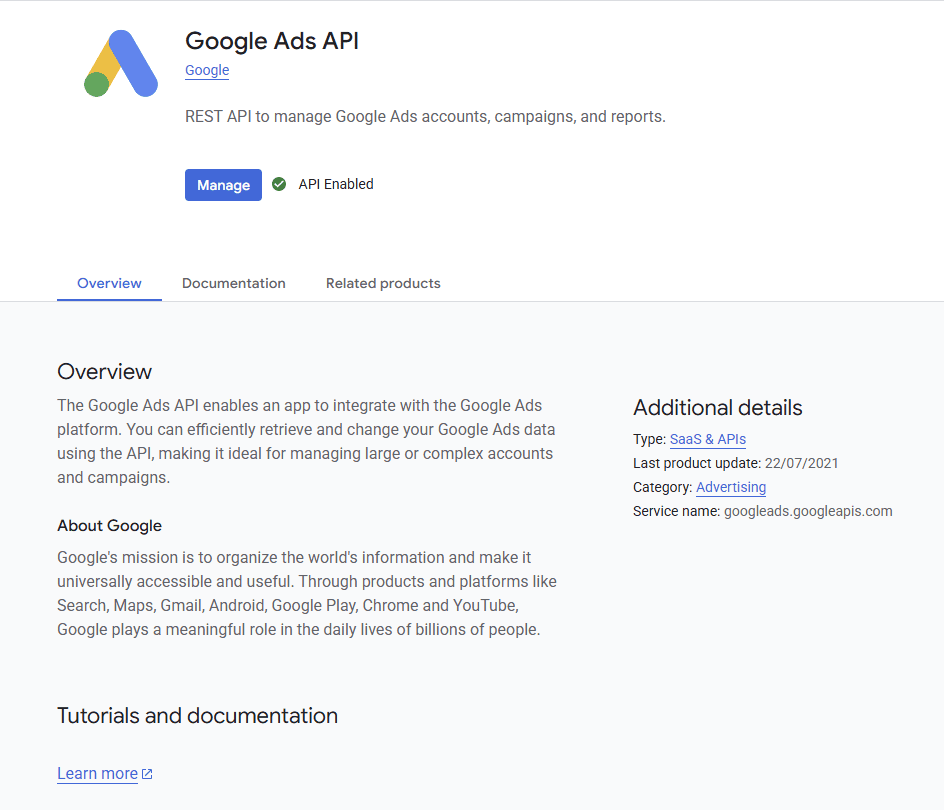
6) Create credentials with the right scope (one-time)
You will create Application Default Credentials tied to a Google account that has access to your Ads accounts.
- In Google Cloud Console, create an OAuth client (Desktop or Web) and download the client JSON.
- In your terminal, run this command, pointing to that JSON, and include the correct scopes:
gcloud auth application-default login \
--scopes https://www.googleapis.com/auth/adwords,https://www.googleapis.com/auth/cloud-platform \
--client-id-file=YOUR_CLIENT_JSON_FILE
When it finishes, copy the path shown after “Credentials saved to file”. You will need this as PATH_TO_CREDENTIALS. This is your ADC file. If unsure at this point read the support docs in the github repo.
7) Wire Gemini CLI to the official Google Ads MCP
Gemini discovers MCP servers from a small settings file.
- Open or create the file, found in the following paths:
- macOS/Linux:
~/.gemini/settings.json- Windows:
%UserProfile%\.gemini\settings.json- Paste this block and fill in your values:
{
"mcpServers": {
"google-ads-mcp": {
"command": "pipx",
"args": [
"run",
"--spec",
"git+https://github.com/googleads/google-ads-mcp.git",
"google-ads-mcp"
],
"env": {
"GOOGLE_APPLICATION_CREDENTIALS": "PATH_TO_CREDENTIALS_JSON",
"GOOGLE_PROJECT_ID": "YOUR_PROJECT_ID",
"GOOGLE_ADS_DEVELOPER_TOKEN": "YOUR_DEVELOPER_TOKEN"
}
}
}
}- GOOGLE_APPLICATION_CREDENTIALS is the path you copied in step 6
- GOOGLE_PROJECT_ID is your Cloud project ID
- GOOGLE_ADS_DEVELOPER_TOKEN is from step 3
If your Ads access is through a manager accounts, add “GOOGLE_ADS_LOGIN_CUSTOMER_ID”: “YOUR_MANAGER_CUSTOMER_ID” under env.
8) Try it
- Open your terminal and start Gemini:
gemini- Type:
/mcpor
/mcp listto discover appropriate criteria to help your query you can type
/mcp schema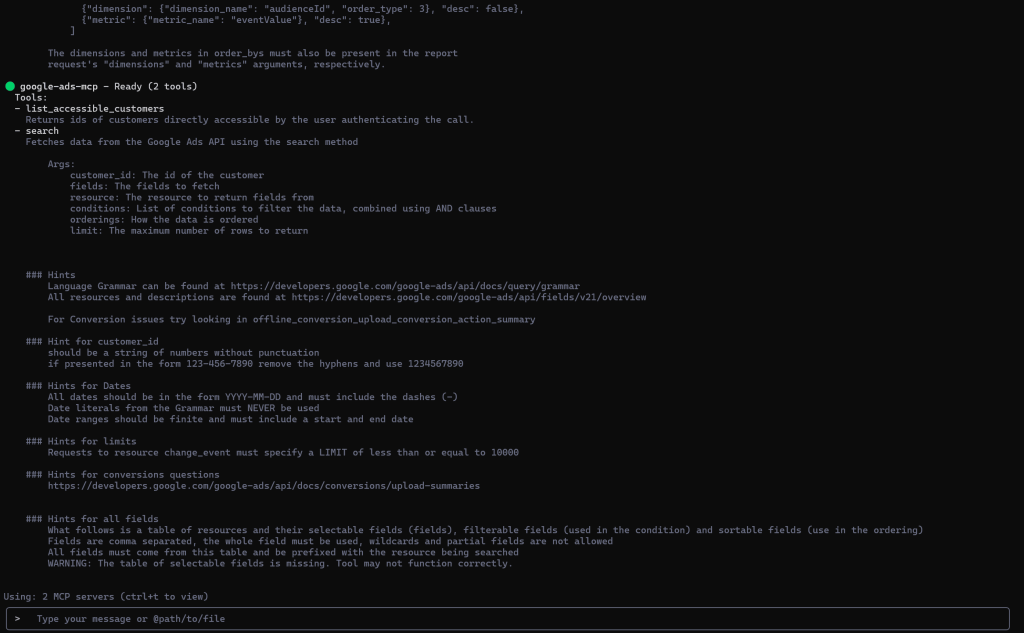
You should see google_ads_mcp in the list.
- Try one of the example prompts:
What can the ads MCP server do?
What customers do I have access to?
How many active campaigns do I have for customer id 1234567890?
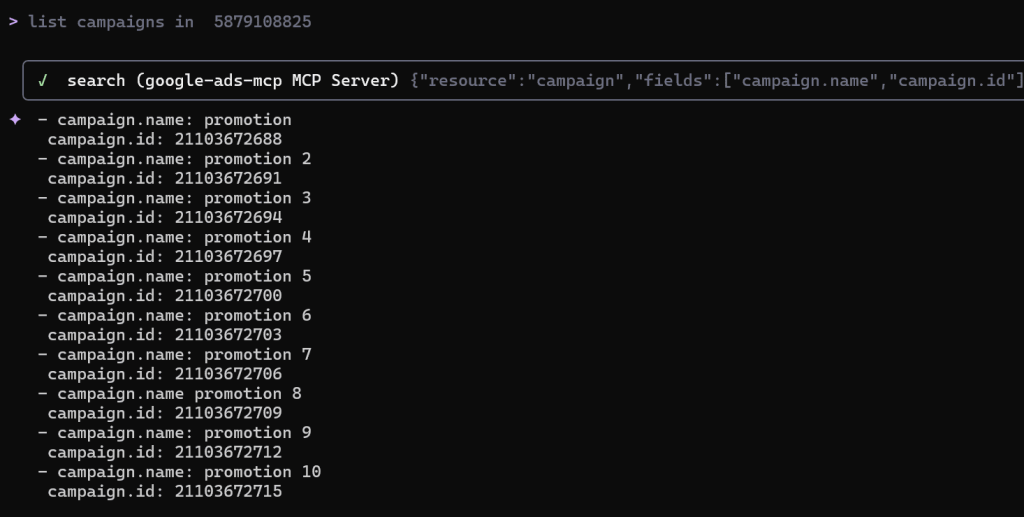
The server currently provides read-only tools – search and list_accessible_customers which you can also call directly in the Gemini chat interface.
Troubleshooting
Common issues:
- MCP is listed in Gemini, but is disconnected (red):
- Ensure that you have enabled https://www.googleapis.com/auth/adwords as a verified scope in your Google Cloud Console, and that your authentication is correct
- Gemini shows no MCP servers
- Check your ~/.gemini/settings.json path and JSON syntax. Ensure that pipx is on PATH and re-open the terminal.
- Developer Token issues
- Confirm the token from the API centre in your Ads account and whether it is approved for test or production. To approve for production you must follow the support docs and requirements for detailing your use-case. Test tokens can be used with test manager accounts.
Final Thoughts
The Google Ads API MCP server through Gemini CLI is a great development from Google Ads, and a huge step to being able to develop useful AI agents and apps that can communicate with ad accounts in a meaningful way. For me personally, this is the way to go over any unofficial MCP servers connected to LLMs, simply because of data privacy issues and access credentials – also the fact that it is all run locally.
I’ve already highlighted in a separate post how OpenAI’s agent mode can create full campaigns autonomously within Google Ads. Whilst the MCP and API are slightly different in the way they work, I believe it gives you an idea of where the future of PPC may head. If we have AI agents or assistants performing many different manual tasks, giving us deep insight in a natural response, then how much more can we take on? 10x accounts?
Whilst the MCP cannot do very much at the moment apart from read your account data, it’s definitely worth understanding how this system can be used for you and your clients ad accounts, and what it means for the future of PPC advertising. If you are giving it a go, and having issues setting it up with the instructions above, do feel free to get in touch.